




How to Create a High Performing Category Page For your E-commerce Store
The cornerstone to a successful e-commerce store is through a high-performing category page. It sets the tone for your store and leaves an impression on your customers.
The cornerstone to a successful e-commerce store is through a high-performing category page. It sets the tone for your store and leaves an impression on your customers. Most consumers are less likely to return to your store if it’s confusing, unorganized and difficult to navigate. So it’s imperative to optimize one of the most important pages of your store to ensure a smooth user experience.
The category page is the bridge between the homepage of your e-commerce store and your product pages. E-commerce category pages display the type of products you have to offer. If people can move through them easily, you get more of them onto product pages and into the cart.
Most of this applies to any platform. Where it gets specific, it’s Shopify, where category pages are called collections.
The Role of the Category Page
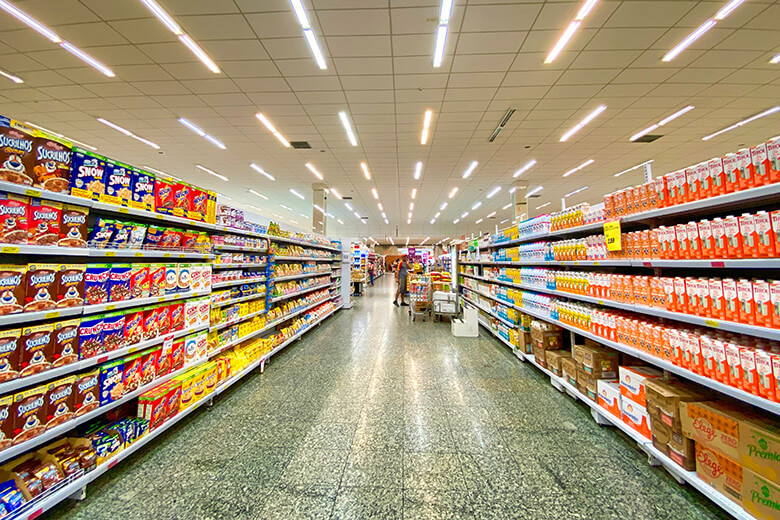
Similar to grocery stores, shoppers find it easier to navigate stores where products are accessible. When the aisles display the products accordingly, finding the right products is effortless, improving the entire shopping experience. It encourages them to return and purchase even more. So if the placement is right, it’ll be easy for the customers to shop.
Categories organize your products to make it easier for users to locate what they’re after. In optimizing the category pages, it’s best if you keep user intent in mind. The primary goal is to provide the best user experience to generate more sales, so if a customer struggles to browse your e-commerce store, maybe it’s time to change your strategy.
Choosing Your Categories
Designing optimized category pages involves in-depth user analysis and research. It should be your objective to tailor the e-commerce store’s structure to convert your traffic into revenue. Not only can it enhance the overall user experience but also improve your store’s SEO.
Prioritize Clarity in Choosing Category Names
The category names, along with product descriptions and listings, should be clear and concise.
It should follow the jargon of your target market. Instead of using obscure words, simplify the terms that you use according to the language that your customer understands.
Prioritize clarity and make sure to include the description in its entirety. It’s best if your listings pass the Flesch reading scale to make sure that it’s understandable.
Moreover, you can perform keyword research to determine the terms that have better SEO. This research improves the chances of your product to be seen by more people.
Dividing Your Products into Multiple Categories
When providing categories for your products, it’s best to divide them into multiple groups. You can integrate brands, sizes, types of products, and more to give your users more ways to browse your products. Categorizing your offerings also makes it easier for customers to locate their desired items or browse your offerings to find what they want.
It’s best if you highlight particular product groups, including the best-selling products and most sought-after brands. Putting those categories upfront allows customers who are looking for specific brands to find their preferred items easily.
At the same time, consumers can figure out the products other people most likely buy from your store by browsing your best-selling categories.
A simple rule for deciding between a new category and a filter: if people search for it by name (say, "linen shirts" or "waterproof hiking boots"), give it its own category page. If it’s just a way to narrow down a list people are already on (size, price range, in stock), make it a filter.
How Do Category Pages Work in Shopify?
In Shopify, a category page is a collection, at a URL like /collections/linen-shirts, managed under Products > Collections. Manual collections are hand-picked, which suits curated groups like "Gifts under $50". Smart (automated) collections add products that match conditions such as type, tag, vendor or price (up to 60 conditions), which suits big categories that keep growing. Shopify is rolling out a newer model that mixes both in one collection, so your admin may look slightly different.
Two settings on each collection are worth checking:
- Default sort. New collections default to Most relevant, which is based on sales. That buries new products that haven’t sold yet, so for a new line pick date created (newest first) or sort it manually.
- Search engine listing. Each collection has its own page title, meta description and URL handle. Use the words customers search for, and don’t change the handle after launch without a redirect.
Choosing the Right Featured Product Images
Choosing the right product images to feature on your category page matters a lot. It is essential to add an image that immediately tells the consumer about the category - and each individual product as well. They should be able to point out the category at face value.
You must select images that have high-resolution, similar size, proportions, and background like the rest. Uniformity prevents confusion and lets the consumers focus on the actual product. If you use inconsistent images, your audience will focus on their differences instead of becoming compelled to choose one.
Adding an “Add to Cart” Button to Quickly Convert Customers
Adding this call-to-action button for every product listing on the category page will increase your conversion rate. This button improves the user experience as they can conveniently compare product prices without a fuss of going to the actual product page when they don’t really want to or have to.
To make your “add to cart” button functional, strive towards keeping it immersive and informative. Consumers should see what happens when they click the button. Actions, such as adding a product to the cart, should be shown in real-time by displaying a notification or even better, the entire shopping cart.
On Shopify, check your theme before installing an app for this. Dawn and many other current themes have a "quick add" option in the product grid settings in the theme editor. For products with variants it opens a size or color picker first, which is what you want.
Allow Filtering, Especially if You have Hundreds of Products
Your e-commerce store should allow filtering, especially for a more complex and more extensive selection of products. You can ease dreadful shopping navigation by implementing faceted filtering to help customers narrow down their search.
Additionally, you must empower your users to improve their experience. Let them select their filters manually by providing pricing input fields and color or material fields. Each customer approaches your website differently so it’s your job to make it suitable for all of them.
Setting up filters in Shopify
Shopify’s own filters live in the free Search & Discovery app. Go to Apps > Search & Discovery > Filters, click Add filter and pick a source: availability, price, product type, vendor, tags, category, variant options like size and color, or metafields for things like "material". Limits that catch people out, per Shopify’s filter docs:
- Up to 25 filters per store, 100 values shown per filter.
- Collections with more than 5,000 products show no filters at all, so split a giant "All products" collection.
- If your theme doesn’t support filters, customers won’t see them. Content > Menus shows a message under "Collection and search filters" if that’s the case.
Clean your data first. If half your products say "Navy" and half say "Navy Blue", shoppers get two options.
Where Should the Category Description Go?
Text above the grid pushes products down, and on a phone that can put the first product below the fold. A rule that works for most stores: one or two sentences above the grid saying what’s in the category, and anything longer (sizing, care tips, common questions) below it, where it still helps search engines and the shoppers who scroll for more.
In Shopify you write the description on the collection in the admin, but your theme decides where it shows, and many themes only show it in the banner on top. Longer copy below the grid usually needs a separate text section or a metafield. Write it for people, not as a block of keywords.
Pagination, Infinite Scroll and Filtered URLs: What Does Google See?
Per Google’s pagination guidance, each page of results needs its own URL like ?page=2, linked with a normal . Google doesn’t click "Load more" buttons, ignores anything after a #, and no longer uses rel="next"/rel="prev". Don’t canonicalize page 2 and up back to page 1.
- If a filtered view should rank (people search "navy linen shirts"), make it a real collection with its own title and handle instead of relying on the filter URL.
- Check the canonical. View source on a filtered URL and search for
canonical. It should point to a page you want indexed. Google’s faceted navigation guide treats canonicals as a weaker signal than blocking crawling, so don’t rely on them alone. - Leave robots.txt alone unless you know why. You can edit it with a
robots.txt.liquidtemplate, but Shopify calls that unsupported and warns mistakes can cost you all your traffic.
Add actionable blocks that will advertise separate products or other categories
Integrating actionable or informational blocks in between product listings can advertise other products and improve your sales tremendously. This marketing tactic will help break up the mundane grid layout and provide some more value by displaying various recommendations and increase the chances of them seeing other product offerings, tips or informative blog posts.
But these can also just be editorial images to add some life and character to the page.
Directing them to promotional blogs and articles helps them understand the products further:
- Providing a how-to section or guide promotes integrity and implies care for your customers.
- Offering useful guides and articles establishes your brand as an authority in the industry, which entices customers to purchase from you instead of your competition. Gaining customers’ trust can ultimately retain them.
Implement strong design choices with enough breathing room around each product
To avoid a cluttered and confusing page, keep your design simple and straightforward.
You can also improve the user experience by providing enough breathing room with every element on your page. When your page comes together nicely and consistently, it is more pleasing to the eye. Most importantly, a great design is a reflection of the credibility of your business.
Once someone clicks through from the category page, the product page has to finish the job. We cover that side in 10 ways to generate more sales by optimizing your product page.
Optimize your e-commerce store with categories
To sum it all up, categorizing your products makes it easier for your customers to navigate your store, increasing your conversion rate. Adding a wide selection of categories along with featured categories prominently shown on the home page allows your customers to find exactly what they need immediately. Overall, a strong category page layout facilitates a smooth user experience for your customers driving sales and conversions.
If you want to improve your category pages and want some help doing so, don't hesitate to reach out!
Wondering what shape your own site is in?
Get a free 27-point Website Health Check - security, speed, accessibility and SEO. Plain English, no pitch.
Check my site